Getting Started with cURL
Hey there! 👋 If you're a developer, you've probably heard someone mention cURL, or maybe you've seen it mentioned in API documentation and wondered what it was. If you felt confused, that's totally normal—cURL can seem intimidating at first. But here's the truth: cURL is actually a super simple tool once you understand what it's doing.
In this guide, I'm going to walk you through cURL step-by-step, starting from the absolute basics. By the end, you'll not only understand what cURL is, but you'll feel confident using it in your own projects. Let's dive in!
What is cURL? (The Super Simple Version)
Imagine you're sitting at a coffee shop and you want to send a message to a friend who's sitting at a nearby table. You could:
Option 1: Walk over and tell them directly (like a browser does when you click a link)
Option 2: Write the message on a piece of paper and send it through another person who reads exactly what you wrote (like cURL does)
cURL is that "person" who delivers your message exactly as you wrote it.
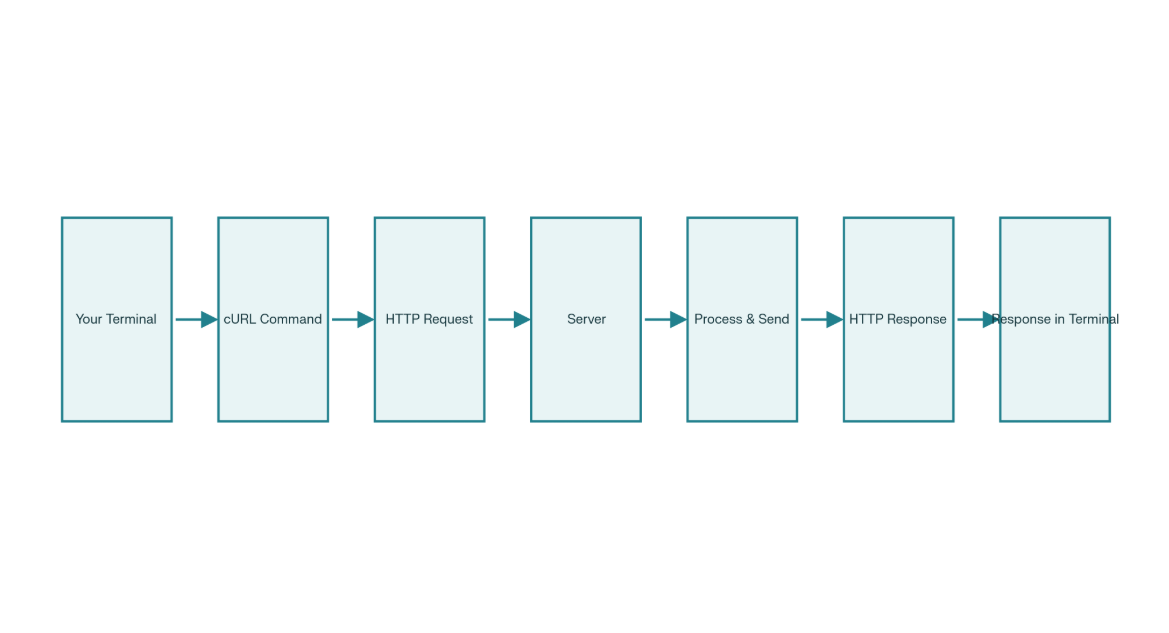
More technically speaking, cURL is a command-line tool that lets you send messages (requests) to servers from your terminal. Instead of using a web browser, you type a command, and cURL sends that request to a server, gets the response, and shows it to you in your terminal.
Think of it this way:
Browser = A visual way to interact with the web
cURL = Programmatic, text-based way to talk to servers
That's it. That's the core concept.
Why Do Programmers Need cURL?
You might be wondering: "Can't I just use my browser to visit websites?" Sure! But here's why developers love cURL:
1. Testing APIs Quickly
When you're building a backend API, you need to test it. Instead of building an entire frontend to test your backend, cURL lets you send requests instantly from the terminal. Super fast.
2. Automation
You can write scripts that use cURL to automate tasks. For example, fetch data from an API every hour, or send data to multiple servers automatically. Your browser can't do this easily.
3. No GUI Needed
When you're working on a server (like an AWS instance) or a remote machine, you often don't have a graphical interface. cURL works anywhere you have a terminal—which is everywhere.
4. Complete Control
With cURL, you control every detail of the request: headers, method, data, authentication, cookies, redirects—everything. Browsers do a lot of this automatically, which is great for browsing but terrible for debugging.
5. Learning Tool
Understanding HTTP and how web requests work becomes much clearer when you're manually constructing them with cURL.
Let's Make Your First Request Using cURL.
Alright, enough talking. Let's actually do this!
The Absolute Simplest cURL Command
Open your terminal and type this:
curl https://example.com
What just happened?
cURL took your command
Created an HTTP request to
example.comSent it to the server
Received the response (the HTML of the page)
Printed it to your terminal
You should see a bunch of HTML code printed out. That's the raw HTML of example.com! If your terminal got flooded with text, don't panic—that's normal. You were just viewing the source code of a webpage, which is what cURL does by default.
Making It Slightly More Useful: Pretty Print Headers
Let's modify the command to see both the response headers AND the body:
curl -i https://example.com
The -i flag means "include headers in the output." Now you'll see:
Status line (like
HTTP/1.1 200 OK)Response headers
Response body (the actual content)
Much more informative!
Understanding Request and Response: What's Actually Happening?
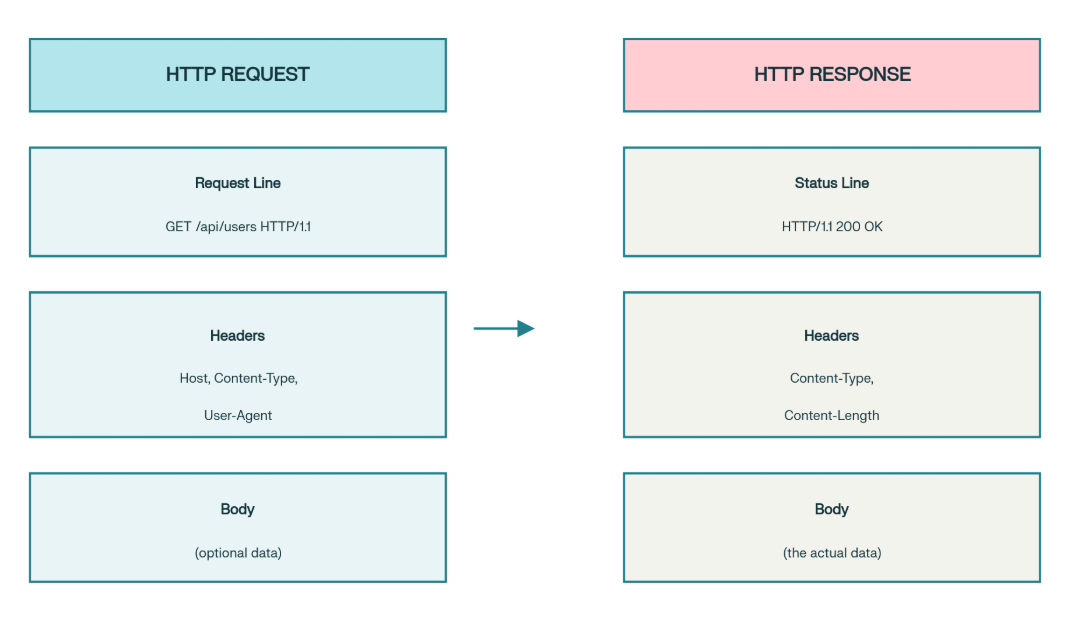
Let me break down what happens when you run curl https://example.com:
What cURL Sends (The Request)
GET / HTTP/1.1
Host: example.com
User-Agent: curl/7.68.0
Accept: */*
Breaking this down:
GET = The HTTP method (we'll talk about this more soon)
/ = The path you're requesting
HTTP/1.1 = The protocol version
Host, User-Agent, Accept = Headers that provide additional info to the server
What the Server Sends Back (The Response)
HTTP/1.1 200 OK
Content-Type: text/html
Content-Length: 1256

<html>
  <head>...</head>
  <body>...</body>
</html>
Breaking this down:
HTTP/1.1 200 OK = Status line (200 means "success")
Content-Type, Content-Length = Response headers (metadata about the response)
The HTML = The actual response body (the data you wanted)
Understanding Status Codes
When the server responds, it always includes a status code:
2xx (200, 201, 204) = Success! The request worked.
3xx (301, 302) = Redirect. "Go ask this other URL instead."
4xx (400, 404) = Client error. "You asked for something wrong."
5xx (500, 503) = Server error. "Something went wrong on my end."
When you see 200 OK, you're good! When you see 404 Not Found, that thing doesn't exist.
Using cURL to Talk to APIs
Now we're getting to the really powerful stuff. Most modern development involves working with APIs (Application Programming Interfaces). APIs are just servers that expect structured data and return structured data (usually JSON).
Let's look at the two most important HTTP methods: GET and POST.
GET Requests: Asking for Data
curl https://api.example.com/users
This is actually sending a GET request by default. GET means "Hey server, give me some data." The server looks at what you asked for and sends back the data.
Example with a real (fake) API:
curl https://jsonplaceholder.typicode.com/posts/1
This asks the server for post #1. Try it! You'll get JSON back.
POST Requests: Sending Data
GET requests ask for data. POST requests send data to the server. This is how you submit forms, create records in databases, etc.
Here's the basic syntax:
curl -X POST -H "Content-Type: application/json" -d '{"name":"John","age":30}' https://api.example.com/users
Let's break this down:
-X POST = Use the POST method instead of GET
-H "Content-Type: application/json" = Tell the server "Hey, I'm sending JSON data."
-d '{"name":"John","age":30}' = The data to send (the request body)
https://api.example.com/users = Where to send it
The server receives this, processes it (maybe creates a new user), and sends back a response.
A Real Example You Can Try:
curl -X POST -H "Content-Type: application/json" -d '{"title":"Learn cURL","body":"This is awesome"}' https://jsonplaceholder.typicode.com/posts
This creates a fake post on a test API. You'll get back JSON showing your created post with an ID.
Where cURL Fits in Backend Development
As a backend developer, here's where cURL becomes essential:
Development Phase: You write an API endpoint, then test it with cURL before building the frontend.
Debugging Phase: Users report an issue. You use cURL to reproduce the same request and see what the API returns.
Integration Phase: You're integrating with a third-party API (like Stripe, Twilio, AWS). You test the integration with cURL first.
Automation: You write shell scripts that use cURL to automate tasks.
Learning APIs: When learning a new API, the documentation often shows cURL examples. Understanding these examples helps you understand the API.
Quick Reference: Common cURL Commands
# Simple GET[1]
curl https://api.example.com/users

# GET with headers visible[2]
curl -i https://api.example.com/users

# Verbose output (see everything)[1]
curl -v https://api.example.com/users

# POST with JSON data[2]
curl -X POST -H "Content-Type: application/json" -d '{"name":"John"}' https://api.example.com/users

# POST with form data[1]
curl -X POST -d "name=John&age=30" https://api.example.com/users

# With authentication[1]
curl -u username:password https://api.example.com/users

# With custom header[2]
curl -H "Authorization: Bearer YOUR_TOKEN" https://api.example.com/users

# Follow redirects[4]
curl -L https://example.com

# Save to file
curl https://example.com -o filename.html

# Headers only (no body)[4]
curl -I https://example.com

# With timeout
curl --max-time 5 https://api.example.com/users
Final Thoughts
cURL might have seemed mysterious at first, but now you know:
What it is: A command-line tool to send HTTP requests
Why you need it: For testing, debugging, and automation
How to use it: Simple commands for GET and POST requests
Common pitfalls: Quotes, headers, content-type, and debugging
Where it fits: Essential in backend development
The best way to learn is by doing. Pick an API (like JSONPlaceholder or PokéAPI), and start experimenting with cURL. Make GET requests, POST requests, add headers, and see what happens.
When something breaks (and it will), don't panic. Use -v to see exactly what's happening, read the error message carefully, and you'll figure it out. That's how we all learned.


